
ANIMATION · 4 STEPS
How to animate a mascotfrom an image.
You have the character. Give it a little movement. Upload your mascot, animate it, and take it into your app.
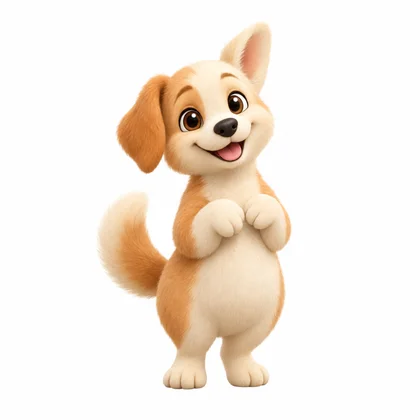
Same Rudy. A little more wiggle.
Bring your character.
You’ll need a clear image of your mascot, a Masko account, and credits for generation. Start with one simple action: a wave, a nod, or a small celebration.
Rudy above is our example. You can follow the same steps with your own character.
Download Rudy’s example image ↓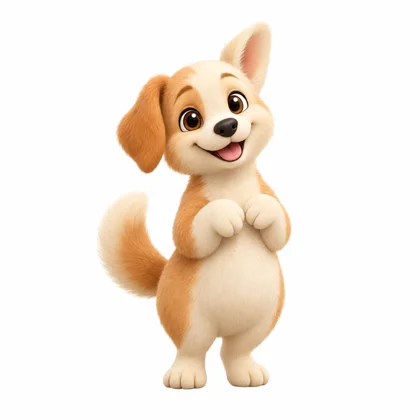
01 / THE STARTING POINT
Upload the mascot you already have.
Open Studio and choose New Collection, then Mascot and Upload your own. Select your character image. Once the mascot opens, find the image you want to animate and choose Animate.
In the animation form, you can also use Upload image or Choose existing to pick a different source. That form accepts PNG, JPEG, or WebP up to 10 MB.
- Keep the whole character visible, including ears, hands, and feet.
- Leave a little space around the body for movement.
- Use one character on a plain or transparent background.
- Keep slogans and other text outside the image.
If the form asks you to crop, check that the square crop leaves room for the action. Start from this image directly when you want to animate your existing design.
02 / THE LITTLE PERFORMANCE
Describe one clear movement.
Give the action a name, then fill in Animation prompt. Describe what the character does, how it feels, and where it ends. Keep the camera still so the mascot stays in place inside your interface.
For Rudy, we asked for a proud little celebration after a walk. This is the original prompt used for the example above:
THE PROMPT BEHIND RUDY’S ANIMATION
Locked camera, full-body single-character shot, same character, same material, same proportions throughout. The puppy hears that its person finished a short walk. Its ears perk unevenly, it gives one tiny proud paw clap, then its entire little bottom wiggles with a wildly enthusiastic tail wag. It pauses with a huge warm closed-mouth grin and softly settles back to its original pose. Feet stay planted; do not jump or add fingers. One continuous 5-second action: tiny trigger, big readable emotional reaction, pause, soft recovery. End in the exact starting pose for a seamless loop. Keep the entire character in frame at unchanged scale. Plain solid #ffffff background throughout. No text, symbols, new props, extra limbs, camera movement or cuts.
Use this as a starting point for your character. Generated results will vary.
For your first attempt, a shorter prompt is enough:
The mascot gives a small friendly wave, smiles, then returns to its starting pose. Keep the camera fixed and the whole character visible.
Choose a duration and model. Turn on Loop for a repeating action, and ask for a return to the starting pose. A five-second clip gives a small gesture room to begin, pause, and settle.
03 / WATCH THE DETAILS
Generate. Then give it a proper look.
Check the credit amount shown on the Generate button before submitting. When the animation is ready, watch the full clip and its loop boundary.
- The character: does the face, color, and silhouette still look right?
- The motion: do the hands and feet behave naturally?
- The framing: does anything leave the frame?
- The loop: does the end return smoothly to the beginning?
If something feels off, change one instruction at a time. A smaller gesture is often easier to control than several actions in the same clip. Keep the source image and simplify the motion before trying again.
04 / READY FOR YOUR APP
Let the background disappear.
Open the finished animation’s export controls and choose the format for your app. A transparent export lets the mascot sit over your interface without a white rectangle around it.
| Format | When to use it |
|---|---|
| WebM | Transparent playback in compatible browsers, including Chrome and Firefox. |
| HEVC with alpha | Transparent playback on supported Apple devices and Safari. |
| MP4 (H.264) | A standard video when an opaque background is acceptable. |
Preview the transparent result on both light and dark backgrounds. Look around the fur and moving edges, then test the exported file in the browser or app where it will appear.
Connect the clip to one useful moment, such as a completed workout or a saved task. Provide a pause or still-image option for people who prefer less motion.
Today’s activity
FRI, 18 SEPA LITTLE MOMENT, IN CONTEXT
A walk finished. A tail wag earned.
Here’s Rudy inside our fitness app concept. His celebration sits directly over the interface, with no video rectangle around him.
FOR DEVELOPERS
Same image. Same flow. Through the API.
Run this from your server or terminal. Create a write-enabled key in API keys and set it as MASKO_API_KEY in your environment. Keep the key on your server. You’ll also need credits and a project ID from GET /v1/projects in the same workspace.
- Upload image
- Start animation
- Wait for job
- Get files
1. Upload your character.
Replace mascot.png with your file. Save the returned data.asset_id for the next request. You can also import a publicly accessible image URL.
curl --fail-with-body https://api.masko.ai/v1/upload \
  -H "Authorization: Bearer $MASKO_API_KEY" \
  -F "file=@mascot.png"
2. Ask for one animation.
Replace UPLOADED_IMAGE_ID and PROJECT_ID with your IDs. This creates a mascot and animates the uploaded image directly. Standard at five seconds costs 10 credits.
curl --fail-with-body https://api.masko.ai/v1/animations \
  -H "Authorization: Bearer $MASKO_API_KEY" \
  -H "Content-Type: application/json" \
  -H "Idempotency-Key: my-mascot-wave-001" \
  -d '{
  "source_image_asset_id": "UPLOADED_IMAGE_ID",
  "create_mascot": {
    "project_id": "PROJECT_ID",
    "name": "Rudy"
  },
  "name": "Friendly wave",
  "animation_prompt": "Give a small friendly wave, smile, then return to the starting pose. Keep the camera fixed and the whole character visible.",
  "animation_model": "standard",
  "duration": 5,
  "loop": true
}'
The 202 response includes data.job_id, data.mascot_id, and data.asset_ids. Save them. For another animation of this character, replace create_mascot with mascot_id. Use a new idempotency key for each new animation; reuse the same key and unchanged body when retrying an uncertain response.
Non-square images are center-cropped. Use source_image_crop when you need to position the square yourself.
3. Wait for the job.
curl --fail-with-body "https://api.masko.ai/v1/jobs/JOB_ID?wait=true&timeout=120" \
  -H "Authorization: Bearer $MASKO_API_KEY" \
  -H "Masko-API-Version: 2026-09-26"
Replace JOB_ID with the returned job ID. If data.status is pending or processing, repeat this GET request. A timeout does not cancel generation. Continue when it is completed; if it is failed, read data.error before deciding to retry.
4. Retrieve the transparent files.
curl --fail-with-body https://api.masko.ai/v1/assets/OUTPUT_ASSET_ID \
  -H "Authorization: Bearer $MASKO_API_KEY" \
  -H "Masko-API-Version: 2026-09-26"
Use the animation response’s data.asset_ids.webm or data.asset_ids.hevc as OUTPUT_ASSET_ID. Check that each asset’s data.status is completed: transparent exports can finish after the main job. If an asset is still processing, check it again; if it failed, inspect the output before using it.
Download from data.file_url, a temporary signed link, or use data.cdn_url when available and the file is ready. A returned URL alone does not mean the animation has finished. Use data.asset_ids.video for the opaque MP4.